

Quick Featured Images Pro
Quick Featured Images Pro is your plugin for bulk managing featured images in WordPress. It is the perfect tool that allows you to automatically remove, replace, create and bulk manage your WordPress Featured Images.
The advantage is that you no longer have to manage each featured image individually. Simple filters and options save you a lot of time effortlessly.

Quick Featured Images Pro

Set, change and delete a bunch of featured images from WordPress sites and posts in minutes instead of hours.
What the Plugin Does
Quick Featured Images Pro allows you to set, create, replace or delete your featured images in bulk. It is therefore a real time saver, as you no longer have to change your images individually one by one. The Pro version provides you with numerous options and filters that make the handling of your featured images even easier.
How You Can Benefit from it:

Choose an Option!
We offer four license options tailored to fit your exact needs. Whether you’re managing a single site or up to 25 domains, we’ve got you covered. Choose from our single site, a three, five or 25 domain licenses – all of which are lifetime licenses. With just a one-time payment, you’ll unlock unlimited access to all features.
Blog
Lifetime for a Single Site
$75
Privat
Lifetime for 3 Domains
$180
Professional
Lifetime for 5 Domains
$238
Agency
Lifetime for 25 Domains
$398
Overview
Incredible Optionas and Filters
Choose from a huge number of options and filters to tighten your selection. For example, you can replace WooCommerce product images in bulk an get rid of the WooCommerce default image. Or, you can use features like random selection or external images. You can also use awesome filters in bulk editing for tag, post, status, time, image size and much more.

Features
Quick Featured Images Pro, the premium plugin for WordPress, comes with powerful and time-saving functions for managing featured images. Set featured images of over hundreds posts in one go, automate featured images and image columns. This plugin gives you a lot of freedom regarding the administration of featured images on WordPress sites.
Options
Based on your selected action you can toggle on and off some options:
- overwrite existing featured images with new ones or keep them unchanged. The latter setting is the default.
- ignore posts with existing featured images
- remove the first embedded image from the post content after this image was set as featured image
- force removal of first content image even the featured image was not changed
- attach image to post after set as featured image
- remove featured image
- remove all featured images without existing file
- detach image and post after featured image is removed
If you want to take the first post image as featured image you can choose between:
- the first post image if available in the media library
- the first post image from the current site domain, copy and add it to the media library if not available there
- the first external post image; it will be downloaded and added to the media library automatically:
- the first attached image of a post
- the first image of a WordPress standard gallery
- the first image of a NextGEN Gallery if the NextGen plugin is activated
If you selected multiple images to set them as featured images in random order you can add these options:
- Use each selected only once. If there are more posts than selected images the remaining posts will not be changed.
- Remove excess featured images after all selected images are used.

Filters
If there would be no filters Quick Featured Images Pro would affect all posts and pages without exception! In most cases this is not desired.
The implemented filters allow you to narrow down the action to only the posts and pages you want to modify. The built-in filters are:
- Filter by post type: Search by post types. By default all posts, pages and custom post types will be affected
- Filter by post format: Search by post formats. By default the standard post format will be affected
- Filter by multimedia type: Search for audio and video files
- Filter by status: Search by several statuses (published, draft, private etc.). By default all statuses will be affected
- Filter by search: Search by search term, with option to search in post titles only
- Filter by time: Search by time specifications
- Filter by author: Search by author
- Filter by custom taxonomy: Search by terms of registered taxonomies of a plugin or a theme
- Filter by featured image size: Search for small featured images below a given size
- Filter by category: Search posts by category, including categories of custom post types
- Filter by tag: Search posts by tag, including tags of custom post types
- Filter by parent page: Search child pages by parent page, including pages of any hierarchical custom post type

Save Presets
If you have to manage featured images recurrently presets are the time-saver for you. You can store all settings of many processes to recall them easily the next time.

Set rules easily
You can set rules for default featured images of posts easily. Every time you insert a new post or save an existing post Quick Featured Images Pro will look for a rule to add and to change the default featured image to the saved post.
You can use both images from the media library and images from external servers, e.g. from a CDN, as defaults.
You can define the rules based on:
- first content image if available in the media library or on an external server
- search string in post title
- custom taxonomy supporting featured images
- post tag (including tags of custom post types)
- post category (including categories of custom post types)
- post author
- post format
- post types: ‘Post’, ‘Page’ and custom post types supporting featured images
- for Woocommerce products: the product type, category, tag, shipping class, delivery time, unit, price label and your custom product attributes
The rules are easy to set: choose an image, a taxonomy, a value and save the settings. That’s it. You do not need to code.
You can add, change and delete every rule whenever you want. So you get an unlimited and precise set of rules for automatic default featured images in your website.
You can define in which order the types of rules should be applied. Look for the matching tag, then for the search term? Other the other way around? You have the ability to set the order.
You can set multiple images per rule. The plugin picks up an image randomly to set that as featured image for the new post.
Every time you remove an image from the media library all rules assigned with the removed image are removed automatically. So you get no “forgotten rules”.
You can switch between:
- overwriting existing featured images or
- keeping them unchanged
- using the first attached image as featured image automatically.
The latter setting is the default. The option is used every time a post is saved.
Last but not least: you can export and import all the rules to migrate them easily from site to site.

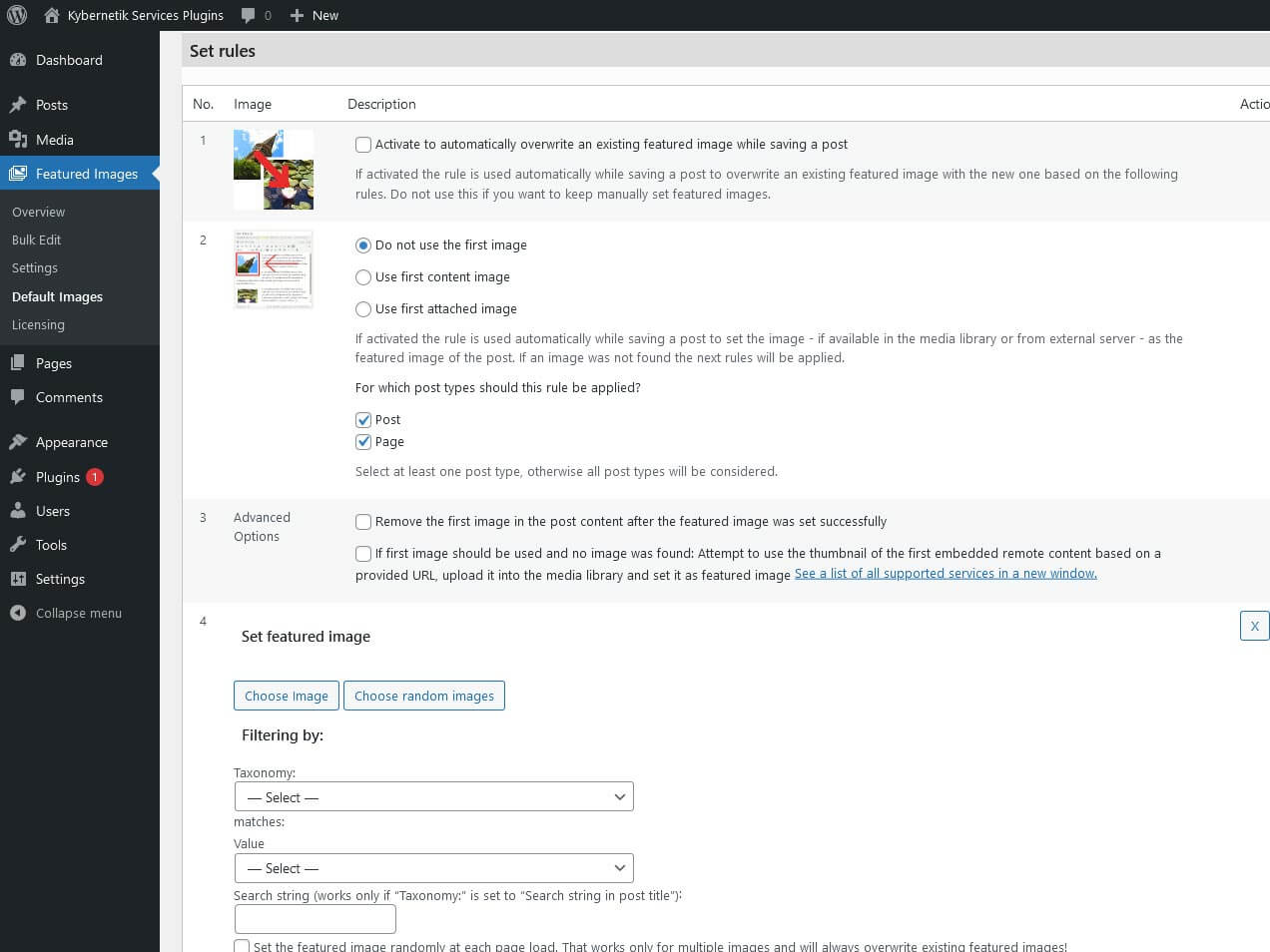
Image column
Quick Featured Images Pro adds a new column in posts lists. The additional column shows the currently assigned featured image of each post and action links for quick adding, changing, removing and editing the featured image at each post. That way changes to images can be done faster.
The new column has the heading ‘Contribution picture’ and can be sorted by picture ID. You will find the pictures on the post overviews for all post types that support featured images.
Users who are authorized to edit images in the media library also see a link under each image that leads directly to the page for further editing of the image. All image information, including excerpts from featured images, can thus be changed more quickly.
In addition, you can add, replace or remove the image for each post in the image column. You do not have to leave the list and you stay on the page.
This column gives you a quick overview of all the used images. You can also see posts without a featured image at a glance.
Under Featured images > Settings you can switch the additional picture columns for each content type on and off, even for custom post types if they support featured pictures.

Automatic upgrades
Get automatic upgrades
With the Pro version you get die latest upgrades for free for 365 days from the day of the purchase.
As usual, you will see new updates in the WordPress plugin overview, which you can carry out with a click of the mouse.
GDPR compliant
Protects personal data
Quick Featured Images is developed in such a way that it neither collects any data and therefore does not process any personal data. We are proud to say that Quick Featured Images Pro is GDPR compliant.
The Right License for You
We offer four different license options to suit your specific needs. There is the blog, private, professional and agency license available.
Blog
$75
Best choice for a single blog
Private
$180
Best choice for use on different sites
Professional
$238
For your own and additional websites
Agency
$398
For agencies to use on customer projects
Pro vs. free
Upgrade for more
The free Quick Featured Images plugin already offers a wide range of functions and filters. However, the Pro version of Quick Featured Images provides a bunch of additional features that enable an even more selective setting.
Actions in Bulk Edit
| Feature | free | pro |
|---|---|---|
| Sets the selected image as new featured image | ||
| Sets multiple images randomly as featured images | ||
| Replaces featured images by the selected image | ||
| Removes the selected image as featured image | ||
| Removes any image as featured image | ||
| Remove all featured images without existing image files | ||
| Removes database entries of featured images without existing image files | ||
| Sets the first image as featured image | ||
| Sets the external image as a featured image (if one of the two free plugins is activated): Featured Image By URL at wordpress.org or Featured Image From URL at wordpress.org) |
Do You Have a Question?
We’re here to help! Whether you need more information about Quick Featured Images or have a specific inquiry, we’re just a message away. So, don’t hesitate to reach out. Our team is ready and excited to provide the insights and support you need.